Workflow rules
Automate your Helpdesk processes with customizable workflow rules. Workflow rules allow you to automatically update ticket attributes, send notifications, and trigger specific actions based on defined events or conditions. This feature helps reduce manual work, maintain consistency, and speed up response times.
After installation, Helpdesk MX automatically creates the default workflow rule "Auto-change status to Waiting for Customer on agent reply".
General information
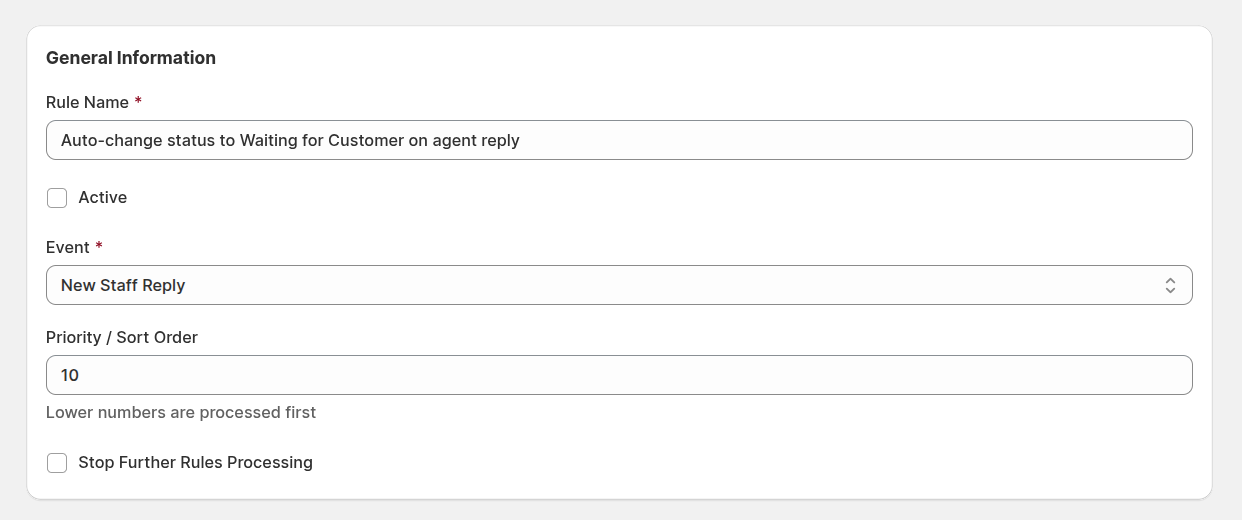
- Rule Name: define a descriptive name for the rule. Clear naming helps your team easily identify what each rule does.
- Active: enable or disable the rule. Only active rules are executed when their event and conditions are met.
- Event: choose the event that triggers the rule.
- Priority / Sort Order: specify the rule’s processing order. Lower numbers are executed first. This helps control which rules take precedence when multiple rules apply to the same event.
- Stop Further Rules Processing: stop executing rules with lower priority once this rule has been applied. Useful when you want a specific rule to take full control of an event.
Events
Events define when the workflow rule is evaluated. Available events include:
- New Ticket — triggered when a new ticket is created.
- New Customer Reply — triggered when a customer sends a new reply.
- New Staff Reply — triggered when an agent posts a reply.
- New Third Party Reply — triggered when a third party sends a message.
- Ticket Assigned — triggered when a ticket is assigned to a user.
- Ticket Updated — triggered when ticket fields are updated.
- Cron Every Hour — triggered by the system every hour, allowing time-based actions.
Conditions
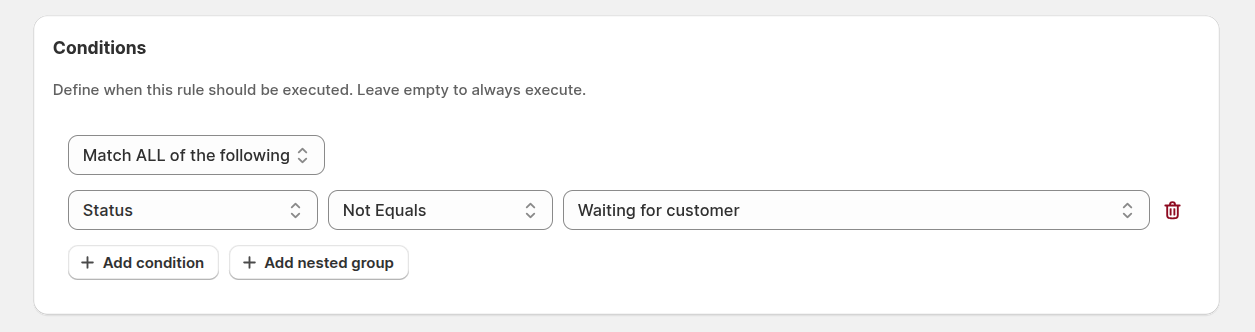
Conditions define when a workflow rule should be executed. You can use one or multiple conditions, combine them with ALL/ANY logic, and even create nested groups for advanced filtering. Leave this section empty to make the rule execute on every event occurrence.
Available fields
You can build conditions using the following fields:
- Subject — checks words or phrases in the ticket subject.
- Customer Email — matches the customer’s email address.
- Customer Name — compares the customer’s name.
- Channel — filters tickets created from specific sources (e.g., email, contact form, API).
- Department — matches the current department assigned to the ticket.
- Department (Before Change) — allows comparison with the department before an update event.
- Folder — checks which folder the ticket currently belongs to.
- Folder (Before Change) — checks the folder before the last change.
- Owner — matches the assigned agent.
- Owner (Before Change) — compares the owner before an update.
- Priority — checks the current priority of the ticket.
- Priority (Before Change) — compares the priority before it was updated.
- Status — checks the current ticket status.
- Status (Before Change) — compares the previous status.
- Last Message — allows you to check content in the latest message.
- Last Reply By — defines who replied last (customer, staff, or third party).
- Hours Since Created — time elapsed since the ticket was created.
- Hours Since Last Reply — time since the last reply was made.
- Hours Since Updated — time since the ticket was last modified.
Condition operators
Each condition can use one of the following operators to define how values are compared:
- Equals — triggers when the field value exactly matches the specified value.
- Not Equals — triggers when the field value differs from the specified value.
- Greater Than — triggers when the value is greater than the specified one (mainly used with numeric or time fields).
- Greater Than or Equals — triggers when the value is greater than or equal to the specified one.
- Less Than — triggers when the value is smaller than the specified one.
- Less Than or Equals — triggers when the value is smaller than or equal to the specified one.
- Between — triggers when the value falls between two specified numbers (useful for time-based conditions).
- Matches Regex — compares field values using regular expressions for advanced pattern matching.
- Starts With — triggers if the field begins with the specified text.
- Ends With — triggers if the field ends with the specified text.
- Is Empty — triggers when the field has no value.
- Is Not Empty — triggers when the field contains any value.
- Contains — triggers when the field includes the specified text.
- Does Not Contain — triggers when the field does not include the specified text.
Actions
Actions define what happens once all conditions are met. Multiple actions can be combined within a single rule.
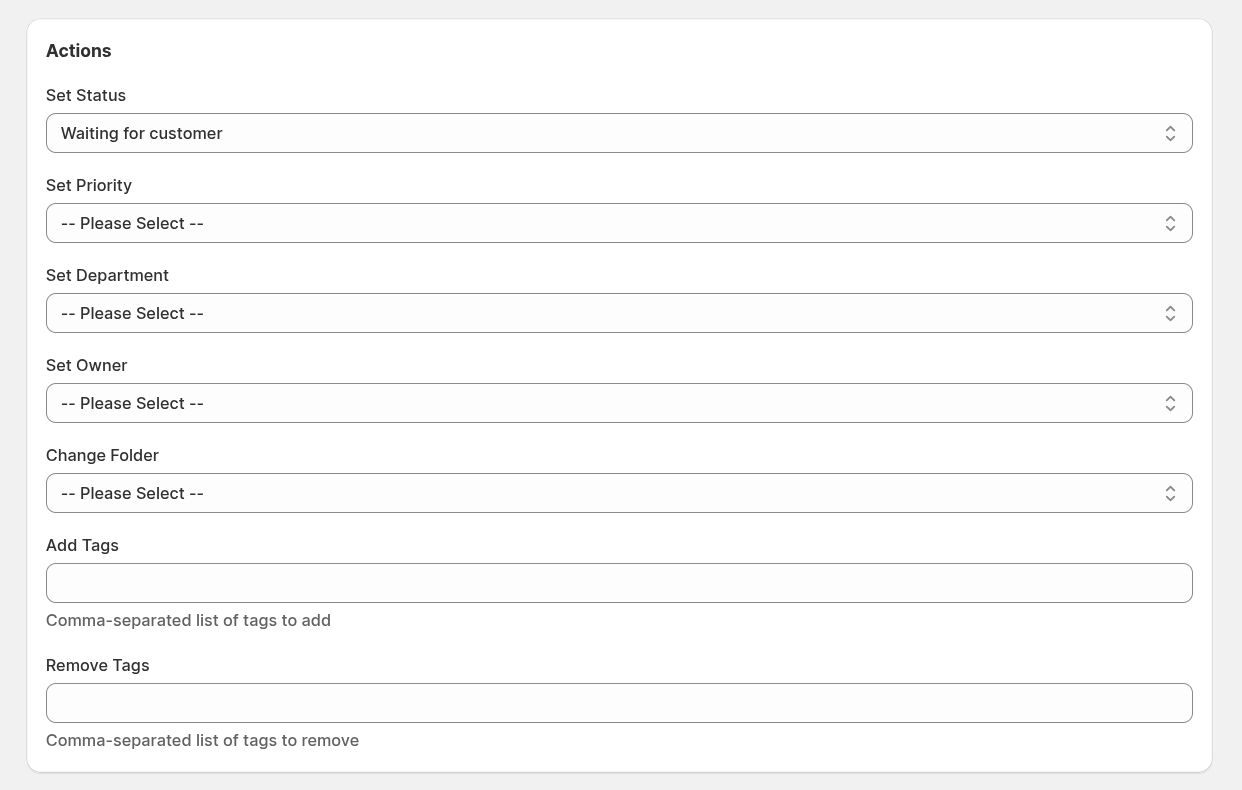
Available actions include:
- Set Status — update the ticket's status.
- Set Priority — change the priority level.
- Set Department — reassign the ticket to another department.
- Set Owner — assign to a specific agent.
- Change Folder — move the ticket to a specific folder.
- Add Tags — add tags for categorization.
- Remove Tags — delete existing tags from the ticket.
- Send Email — send email notifications to specified recipients.
- Run Script — execute custom JavaScript code for advanced automation.
Send Email Action
The Send Email action allows you to send automated email notifications when a rule is triggered. This is useful for alerting team members, notifying customers, or communicating with external parties.
Available options:
- Send to ticket owner — notify the assigned agent.
- Send to all department users — alert all members of the ticket's department.
- Send to customer — inform the customer about updates.
- Send to other addresses — specify custom email addresses.
- Email Subject — define the email subject line (supports Liquid template variables).
- Email Body — compose the email content (supports Liquid template variables).
- Include attachments — attach files from the last message.
Template Variables
You can use Liquid template variables in the Email Subject and Email Body fields to dynamically insert ticket, customer, and message information.
Ticket variables:
| Variable | Description |
|---|---|
{{ ticket.code }} | Ticket code (e.g., T-001) |
{{ ticket.subject }} | Ticket subject line |
{{ ticket.created_at }} | Ticket creation timestamp |
{{ ticket.updated_at }} | Last update timestamp |
{{ ticket.customer_name }} | Customer full name |
{{ ticket.customer_email }} | Customer email address |
{{ ticket.admin_url }} | Direct link to ticket in admin panel |
{{ ticket.admin_last_message_text }} | Body of last agent reply (plain text) |
{{ ticket.admin_last_message_html }} | Body of last agent reply (HTML) |
{{ ticket.customer_last_message_text }} | Body of last customer reply (plain text) |
{{ ticket.customer_last_message_html }} | Body of last customer reply (HTML) |
Owner/assignee variables:
| Variable | Description |
|---|---|
{{ owner.firstname }} | Assigned agent's first name |
{{ owner.lastname }} | Assigned agent's last name |
{{ owner.email }} | Assigned agent's email |
{{ owner.fullname }} | Assigned agent's full name |
{{ owner.is_admin }} | Whether owner is an admin |
Department variables:
| Variable | Description |
|---|---|
{{ department.name }} | Department name |
{{ department.sender_name }} | Department sender name |
Message variables (when triggered by message events):
| Variable | Description |
|---|---|
{{ message.body_text }} | Message content (plain text) |
{{ message.body_html }} | Message content (HTML) |
{{ message.type }} | Message type |
{{ message.created_at }} | Message creation timestamp |
Date/time variables:
| Variable | Description |
|---|---|
{{ now }} | Current timestamp (RFC3339) |
{{ date }} | Current date (YYYY-MM-DD) |
{{ time }} | Current time (HH:MM:SS) |
{{ year }} | Current year |
Example email template:
Subject: New reply on ticket #{{ ticket.code }}

Hi {{ owner.firstname }},

A customer has replied to ticket "{{ ticket.subject }}".

Customer: {{ ticket.customer_name }} ({{ ticket.customer_email }})

Last message:
{{ ticket.customer_last_message_text }}

View ticket: {{ ticket.admin_url }}
Run Script Action
The Run Script action allows you to execute custom JavaScript code to implement complex automation logic that goes beyond simple field assignments. Scripts can read ticket data, make conditional decisions, and update multiple fields at once.
Available ticket properties (read):
| Property | Description |
|---|---|
ticket.id | Ticket unique identifier |
ticket.subject | Ticket subject line |
ticket.folder | Current folder (INBOX, ASSIGNED, SPAM, etc.) |
ticket.tags | Array of tags |
ticket.status | Object with id, code, and name |
ticket.priority | Object with id and name |
ticket.department | Object with id and name |
ticket.owner | Object with id, email, firstname, lastname |
ticket.customer | Object with id, email, firstname, lastname, name |
ticket.<custom_field_code> | Custom field value by its code |
Available ticket properties (write):
| Property | Expected Value |
|---|---|
ticket.status | Status code (string) or status ID |
ticket.priority | Priority name (string) or priority ID |
ticket.department | Department name (string) or department ID |
ticket.owner | User email (string) or user ID |
ticket.folder | Folder name: "INBOX", "ASSIGNED", "SPAM", "ARCHIVE" |
ticket.tags | Array of tag strings |
ticket.<custom_field_code> | Value matching the custom field type |
Helper functions:
| Function | Returns |
|---|---|
getStatuses() | Array of all available statuses |
getPriorities() | Array of all available priorities |
getDepartments() | Array of all available departments |
getUsers() | Array of all available users |
fetch(url, options) | Make HTTP requests to external APIs |
Message context (available when rule is triggered by a message event):
| Property | Description |
|---|---|
message.id | Message unique identifier |
message.body_text | Message content (plain text) |
message.body_html | Message content (HTML) |
message.createdAt | Message creation timestamp |
Script examples:
// Set priority based on subject keywords
if (ticket.subject.toLowerCase().includes("urgent")) {
    ticket.priority = "High";
}
// Route tickets to departments based on content
if (ticket.subject.includes("billing") || ticket.subject.includes("invoice")) {
    ticket.department = "Billing";
} else if (ticket.subject.includes("technical") || ticket.subject.includes("error")) {
    ticket.department = "Technical Support";
}
// VIP customer handling
if (ticket.customer && ticket.customer.email.endsWith("@enterprise.com")) {
    ticket.priority = "High";
    ticket.tags = ["vip", "enterprise"];
}
// Set custom field value
ticket.order_id = "12345";
ticket.vip_customer = true;
ticket.order_amount = 99.99;
// Fetch customer data from external API and update ticket
var response = fetch("https://api.example.com/customers/" + ticket.customer.email, {
    headers: { "Authorization": "Bearer YOUR_API_KEY" }
});

if (response.ok && response.json) {
    ticket.customer_tier = response.json.tier;
    if (response.json.tier === "enterprise") {
        ticket.priority = "High";
        ticket.department = "Enterprise Support";
    }
}
Important notes:
- Scripts have a 10-second timeout to prevent infinite loops.
- Invalid field values (non-existent status, priority, etc.) are ignored gracefully.
- Script errors do not affect other rules or crash the system.
- Custom fields are referenced by their code, not name.
Notifications
You can send automated email notifications when the rule executes to keep all parties informed.
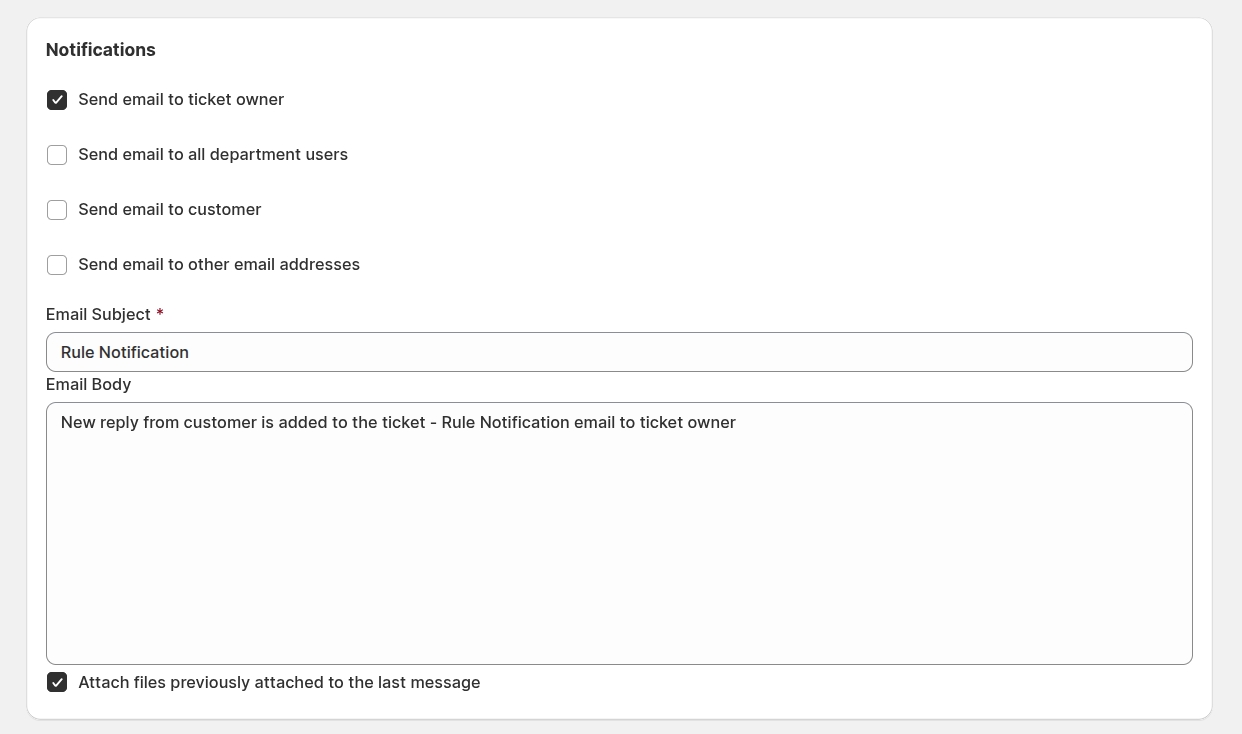
Notification options include:
- Send email to ticket owner — notify the assigned agent.
- Send email to all department users — alert all department members.
- Send email to customer — inform the customer of changes.
- Send email to other addresses — send to external recipients.
- Email Subject — specify the subject line.
- Email Body — compose the email content.
- Attach files previously attached to the last message — include previous attachments for context.
Example workflow rules
Change status on customer reply
When a customer replies, the system automatically changes the ticket status to Waiting for Agent.

Type: Workflow Rule
Is Active: Yes
Event: New Customer Reply
Conditions: Status Not Equals Closed
Actions: Set Status → Waiting for Agent
New reply from Third Party
When a third party sends a message, the system sets the status to Waiting for Agent and adds a tag `third_party`.

Type: Workflow Rule
Is Active: Yes
Event: New Third Party Reply
Conditions:None
Actions:
Set Status → Waiting for Agent
Add Tags → third_party
Ticket assigned to staff
When a ticket is assigned to a staff member, it automatically moves to the Assigned folder and sends an email notification.

Type: Workflow Rule
Is Active: Yes
Event: Ticket Assigned
Conditions: None
Actions:
Change Folder → Assigned
Send email to ticket owner
Close ticket after 72 hours without reply
If no reply is received within 72 hours, the ticket automatically closes.

Type: Workflow Rule
Is Active: Yes
Event:Cron Every Hour
Conditions:
Status Equals Waiting for Customer
Hours Since Last Reply Greater Than 72
Actions: Set Status → Closed
Script: Route and prioritize based on customer email domain
Route enterprise customers to dedicated support and set high priority.

Type: Workflow Rule
Is Active: Yes
Event: New Ticket
Conditions: None
Actions: Run Script

```javascript
if (ticket.customer && ticket.customer.email) {
    var domain = ticket.customer.email.split("@")[1];

    if (domain === "enterprise.com" || domain === "bigcorp.com") {
        ticket.priority = "High";
        ticket.department = "Enterprise Support";
        ticket.tags = ["enterprise", "priority"];
    }
}
```
Script: Auto-categorize tickets by subject keywords
Automatically categorize tickets and set custom fields based on subject content.

Type: Workflow Rule
Is Active: Yes
Event: New Ticket
Conditions: None
Actions: Run Script

```javascript
var subject = ticket.subject.toLowerCase();

if (subject.includes("refund") || subject.includes("return")) {
    ticket.department = "Billing";
    ticket.category = "refund_request";
} else if (subject.includes("password") || subject.includes("login")) {
    ticket.department = "Technical Support";
    ticket.category = "account_access";
} else if (subject.includes("order") || subject.includes("shipping")) {
    ticket.department = "Orders";
    ticket.category = "order_inquiry";
}
```
Script: Escalate based on message content analysis
Detect urgent keywords in messages and auto-escalate tickets.

Type: Workflow Rule
Is Active: Yes
Event: New Customer Reply
Conditions: None
Actions: Run Script

```javascript
if (message && message.body_text) {
    var body = message.body_text.toLowerCase();
    var urgentKeywords = ["asap", "urgent", "critical", "down", "outage", "emergency"];

    for (var i = 0; i < urgentKeywords.length; i++) {
        if (body.includes(urgentKeywords[i])) {
            ticket.priority = "High";
            ticket.tags = ticket.tags.concat(["escalated"]);
            break;
        }
    }
}
```