Preferences
Preferences
Manage your email signature, notifications, and chat preferences.
Email Signature
Configure the signature that will be automatically added to your replies.
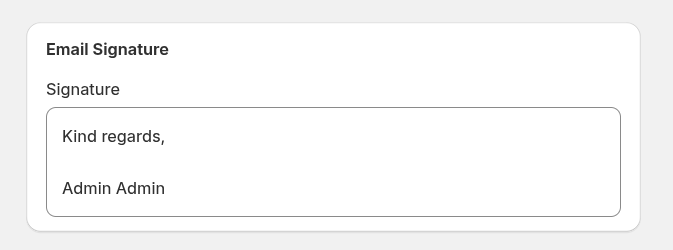
- Signature – define the email signature that will appear in messages you send to customers.
Notification Settings
Control how you receive notifications about helpdesk events. The in-app notification bell is always enabled for all events.
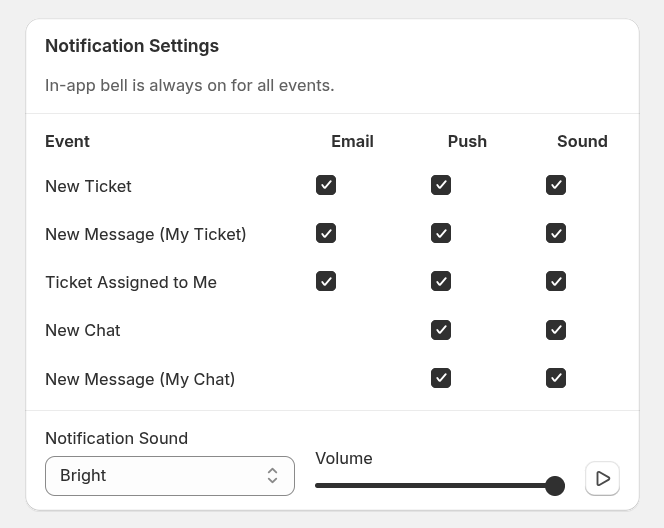
For each event, you can enable or disable the following notification types:
- Email – receive an email notification.
- Push – receive a browser push notification.
- Sound – play a notification sound.
Available events:
- New Ticket – notifications when a new ticket is created.
- New Message (My Ticket) – notifications when a new message is added to a ticket assigned to you.
- Ticket Assigned to Me – notifications when a ticket is assigned to you.
- New Chat – notifications when a customer starts a new chat.
- New Message (My Chat) – notifications when a new message appears in your active chat.
Additional notification options:
- Notification Sound – select the sound that will be played when a notification appears (for example, Bright).
- Volume – adjust the volume level of notification sounds.
- Desktop Notifications – enable browser notifications so you can receive alerts even when the helpdesk tab is not active.
Live Chat
Configure how your information is displayed to customers in chat.
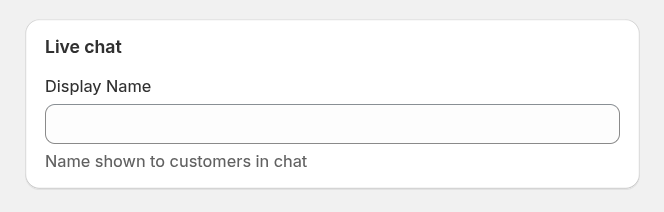
- Display Name – the name shown to customers when you communicate with them in live chat.