Chat workflow rules
Chat workflow rules allow you to automate actions in live chats based on visitor behavior, message activity, agent actions, and chat context. These rules help you proactively engage visitors, route conversations, and manage chat flows without manual intervention.
General information
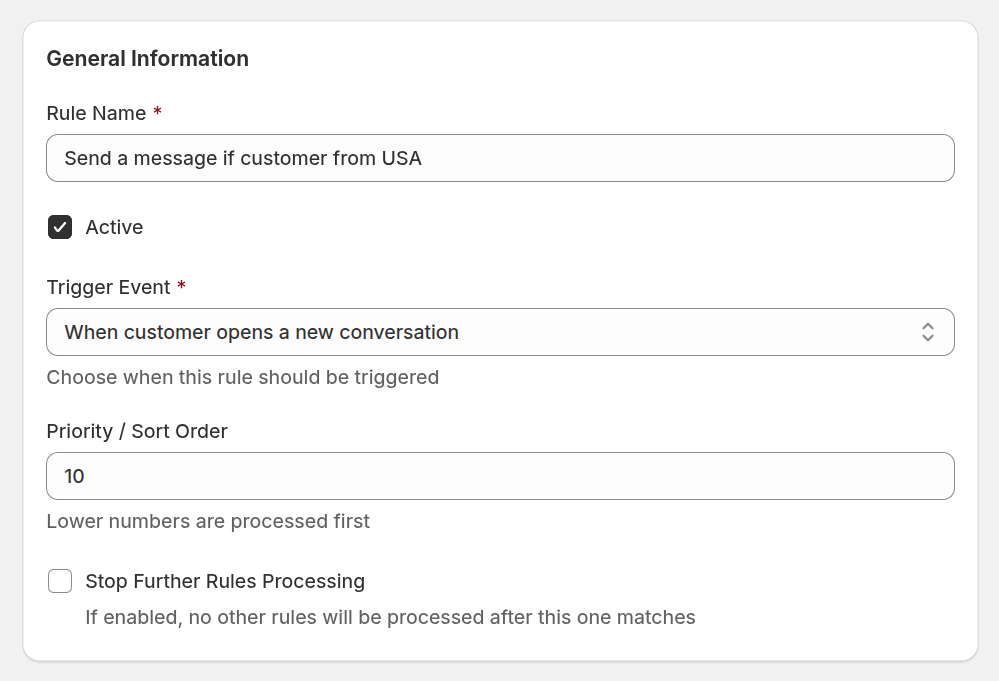
- Rule Name: define a descriptive name for the rule. Clear naming helps your team easily identify what each rule does.
- Active: enable or disable the rule. Only active rules are executed when their event and conditions are met.
- Trigger event: choose the event that triggers the rule.
- Priority / Sort order: specify the rule’s processing order. Lower numbers are executed first. This helps control which rules take precedence when multiple rules apply to the same event.
- Stop further rules processing: stop executing rules with lower priority once this rule has been applied. Useful when you want a specific rule to take full control of an event.
Trigger events
Specifies the event that starts rule evaluation. Available events include:
- When customer visits a page – triggers when a visitor loads a page with the chat widget.
- When customer opens a new conversation – triggers when a new chat conversation is created.
- When customer sends their first message – triggers when the visitor sends their first message in the conversation.
- When customer sends any message – triggers on every visitor message.
- When conversation is started via Rule – triggers when a conversation is created by another workflow rule.
- When rule sends a message – triggers after an automated message is sent by a rule.
- When teammate sends any message – triggers when an agent replies in the chat.
- If teammate changes the conversation state – triggers when the chat status changes (open, closed, currently served, etc.).
- If teammate changes the team assignment – triggers when the chat is reassigned to another team.
- When teammate adds a note – triggers when an internal note is added to the chat.
Conditions
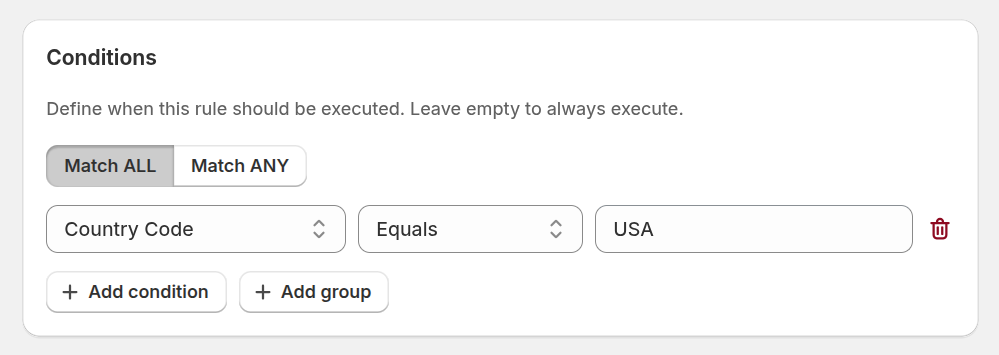
Conditions define when a workflow rule should be executed. You can use one or multiple conditions, combine them with ALL/ANY logic, and even create nested groups for advanced filtering. Leave this section empty to make the rule execute on every event occurrence.
Available Conditions
You can build conditions using the following fields:
- Hour of Day (0–23) – the visitor’s local hour when the event occurred.
- Day of Week – the current day when the chat event was triggered.
- Time on Site (seconds) – total time the visitor has spent on the website.
- Time on Page (seconds) – how long the visitor has stayed on the current page.
- IP Address – the visitor’s IP address.
- City – city resolved from the visitor’s IP address.
- Region – region or state resolved from the visitor’s IP address.
- Country Code – country code (ISO) resolved from the visitor’s location.
- Current Page URL – URL of the page where the chat event occurred.
- Current Page Title – title of the page currently viewed by the visitor.
- Pages Viewed – total number of pages visited during the session.
- User Agent – raw user agent string sent by the visitor’s browser.
- Browser – detected browser name (Chrome, Safari, Firefox, etc.).
- Platform / OS – detected operating system of the visitor.
- Requesting Chat – indicates whether the visitor is actively requesting a chat.
- Served by Agent – shows whether the chat is currently assigned to an agent.
- Triggered – indicates whether the chat has already been triggered by a workflow rule.
- Visitor Name – name provided by the visitor or set automatically by a rule.
- Visitor Email – email address provided by the visitor.
- Visitor Tags – tags assigned to the visitor.
- Number of Chats – total number of chat conversations initiated by the visitor.
- Number of Sessions – number of separate visits made by the visitor.
- Message Sender – identifies who sent the message (visitor or teammate).
- Sender Type – distinguishes between visitor, agent, or system message.
- Message Content – text content of the chat message.
- Account Status – visitor’s account state (guest, registered, blocked, etc.).
- Chat Widget ID – identifies which chat widget initiated the conversation.
- Queue Size – number of chats currently waiting in the queue.
Condition Operators
Each condition supports the following operators:
- Equals – matches an exact value.
- Not Equals – excludes a specific value.
- Greater Than – checks if the value exceeds the specified number.
- Greater Than or Equals – checks if the value meets or exceeds the number.
- Less Than – checks if the value is below the specified number.
- Less Than or Equals – checks if the value is below or equal to the number.
- Between – checks if the value falls within a defined range.
- Matches Regex – uses regular expressions for advanced matching.
- Starts With – checks if the value begins with specific text.
- Ends With – checks if the value ends with specific text.
- Is Empty – triggers when no value is present.
- Is Not Empty – triggers when a value exists.
- Contains – checks if the value includes specific text.
- Does Not Contain – checks if the value excludes specific text.
Actions
Actions define what happens when all rule conditions are met. You can configure multiple actions within a single rule.
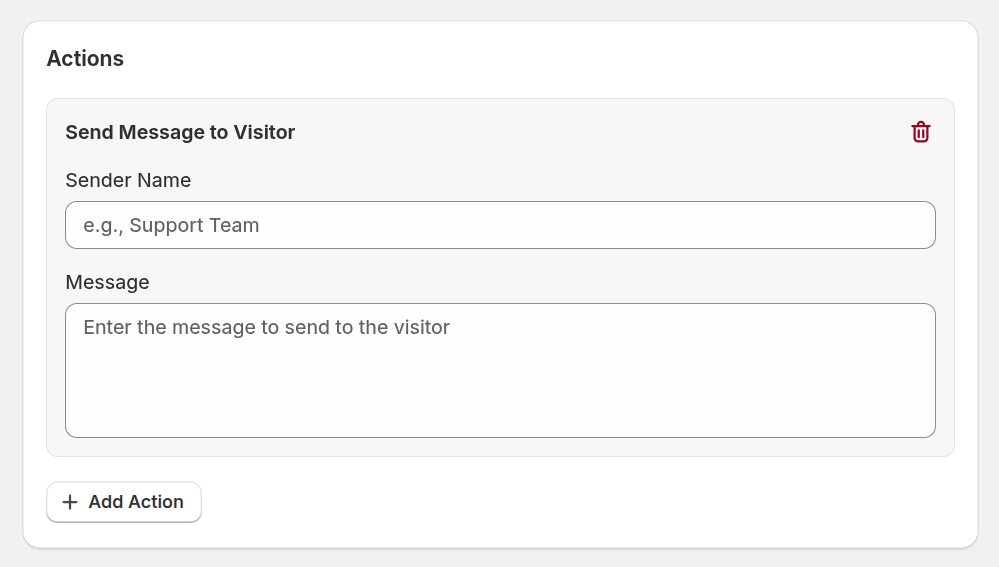
- Send Message to Visitor – sends an automated message in the chat.
- Set Triggered Status – marks the chat as triggered for tracking or logic chaining.
- Wait – pauses rule execution for a specified time before continuing.
- Set Visitor Name – assigns or updates the visitor’s name.
- Block Visitor – prevents the visitor from starting new chats.
- Add Tag – adds a tag to the visitor or chat.
- Remove Tag – removes an existing tag.
- Set Note – creates or replaces an internal note in the conversation.
- Append to Note – adds additional text to an existing internal note.