Working Hours
Configure your working hours to control when your support team is available for live chat and customer interactions. Proper setup ensures accurate availability, better response expectations, and a more professional customer experience.
General settings
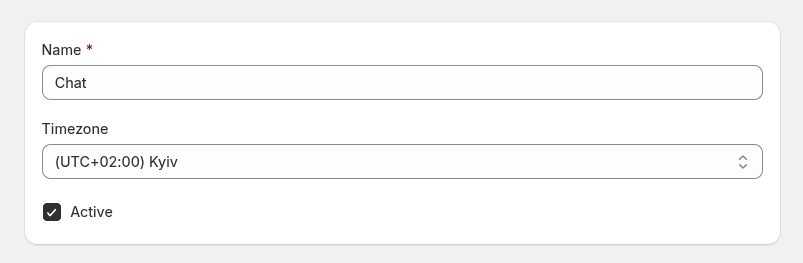
- Name - define a descriptive name for this schedule.
- Timezone - select the timezone used for this schedule. All configured hours will follow this timezone.
- Active - enable this schedule to apply working hours across your helpdesk.
If chat is online according to working hours, but all support agents are offline, the chat will stay offline until at least one agent becomes available.
Hours
Set your team's availability for each day of the week.
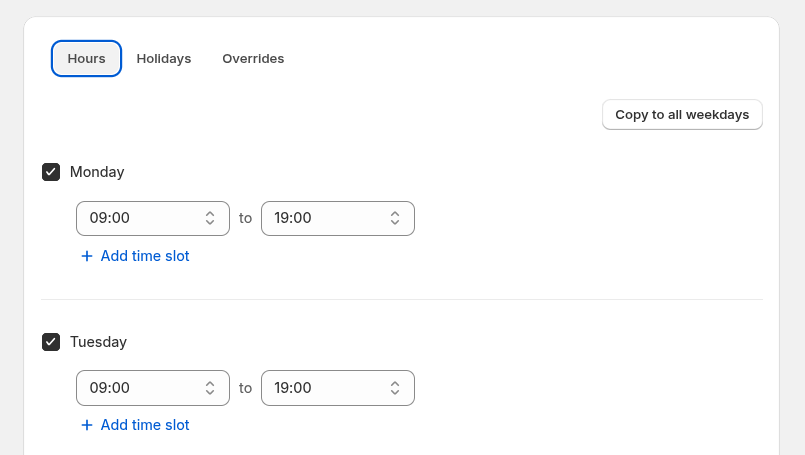
For each day, you can configure:
- Start / End - define the working time interval (e.g.,
09:00to19:00). - Multiple time slots - use Add time slot to create multiple working periods during the day.
09:00 – 13:0014:00 – 19:00
This allows you to define breaks (e.g., lunch time) when chat is unavailable.
Use the Copy to all weekdays button to quickly apply Monday’s schedule to all weekdays (Monday–Friday). This helps save time when your working hours are the same during the week.
Holidays
Define specific dates when your support team is unavailable or has different working hours.
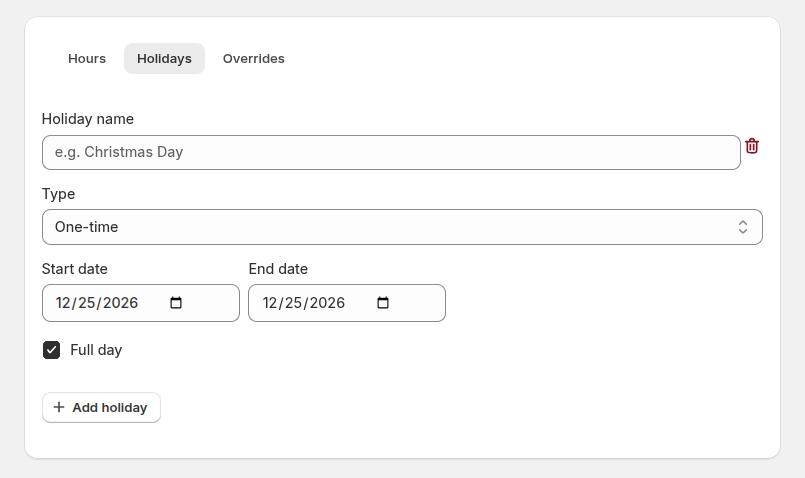
You can create two types of holidays:
- One-time - used for specific dates or date ranges.
- Holiday name - descriptive name (e.g., Christmas Break).
- Start date / End date - define the period when the holiday is active.
- Recurring - used for events that repeat every year.
- Holiday name - descriptive name (e.g., New Year’s Day).
- Month / Day - define when the holiday occurs annually.
Full day - marks the entire day as unavailable. If disabled, you can specify custom working hours for that day instead.
Overrides
Overrides allow you to adjust working hours for specific dates without changing your main schedule. Overrides are useful for handling special events, seasonal changes, or unexpected schedule adjustments.
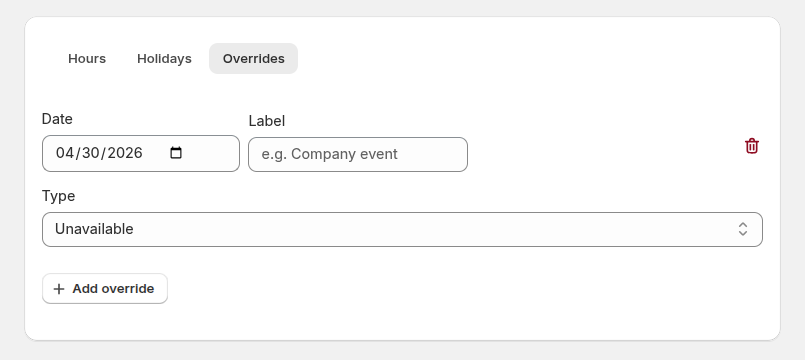
- Date - select the specific date to override.
- Label - optional description (e.g., Black Friday Extended Hours).
- Type:
- Unavailable - completely disable availability for that day.
- Custom hours - define a different working schedule for that specific date.