General settings
Set up the default operational parameters that define how new tickets are created, prioritized, and organized. These options help maintain a consistent workflow and improve the overall efficiency of your support team.
New ticket defaults
These settings define how new tickets are created by default. They help standardize incoming requests, reduce manual adjustments, and ensure every ticket enters your workflow with the correct priority and status.
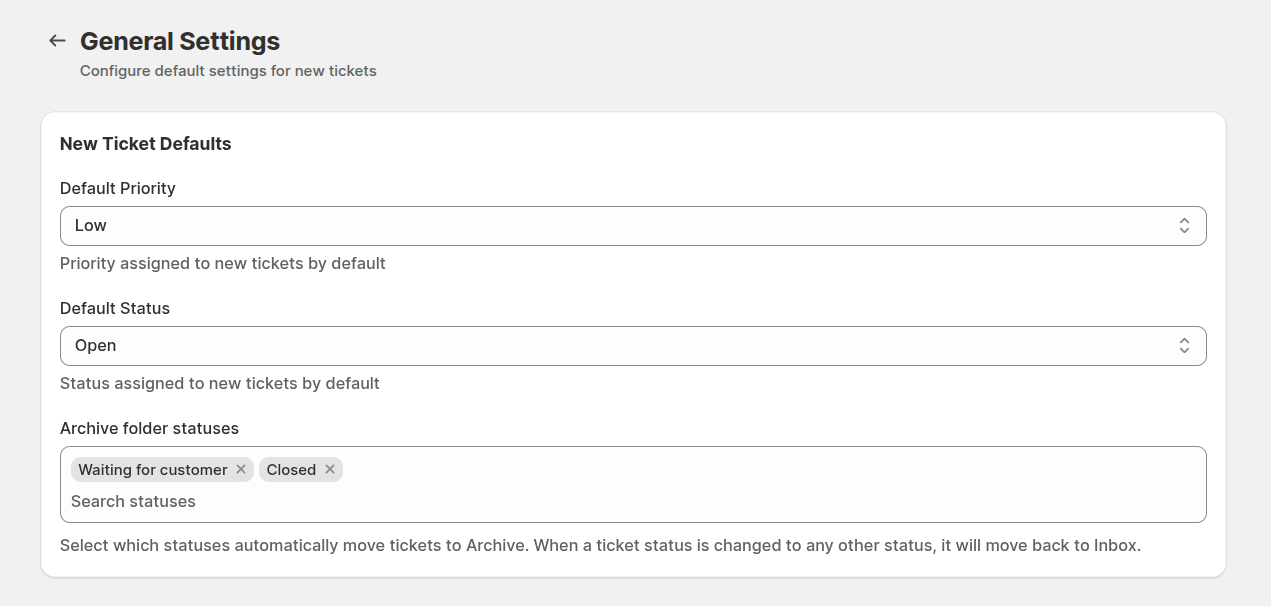
Default priority: select the priority automatically assigned to newly created tickets. Usually, tickets are marked as
Low, ensuring that your team can adjust priority based on issue urgency while maintaining initial organization.Default status: define the default status for all incoming tickets. Usually, this is set to
Open, allowing your agents to immediately start processing new requests.Archive folder statuses: choose which statuses automatically move tickets to the Archive folder (for example,
Waiting for customerorClosed). When a ticket’s status changes to any other value, it will automatically return to the Inbox. This helps keep your ticket queue focused on active conversations and prevents clutter.
Language settings
Language settings allow you to control which languages are available for customer-facing content. This ensures visitors interact with your support experience in a language they understand.
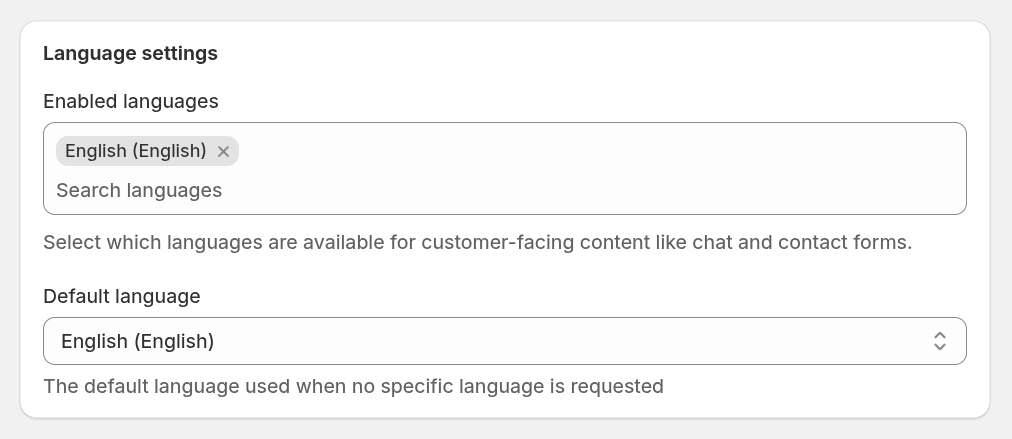
Enabled languages: select the languages that will be available to customers when using chat and contact forms. Only the selected languages will be shown on the storefront.
Default language: defines the primary language used when no specific language is detected or requested by the customer. This language will be applied automatically to all customer-facing interactions.
Proper language configuration helps create a more accessible, localized support experience and improves communication quality across regions.
Default grid columns
Configure the default columns displayed in ticket grids across the helpdesk interface. These settings define the initial layout for all users. If a team member resets their personal column configuration, the system will apply these default columns automatically.
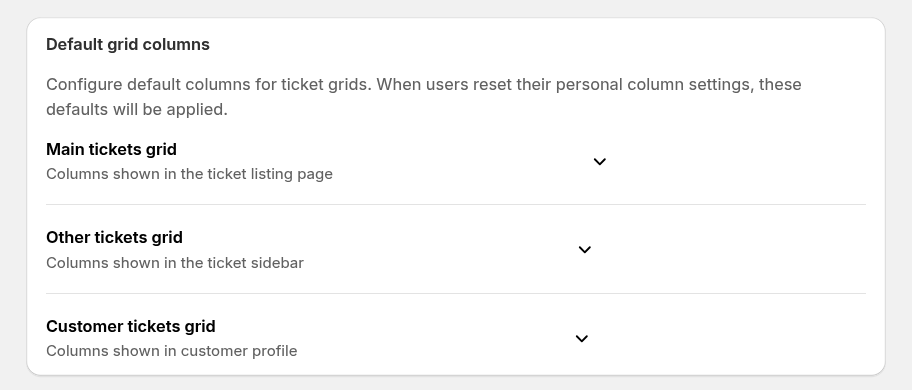
- Main tickets grid — defines which columns are shown on the main ticket listing page.
- Other tickets grid — controls the columns displayed in the Other tickets tab where related tickets appear.
- Customer tickets grid — specifies which columns are visible in the customer profile when viewing their tickets.
Setting up default columns helps keep the interface consistent for your team and ensures important information is always visible.
Ticket form fields
Configure which fields appear in the ticket sidebar when viewing or editing a ticket.
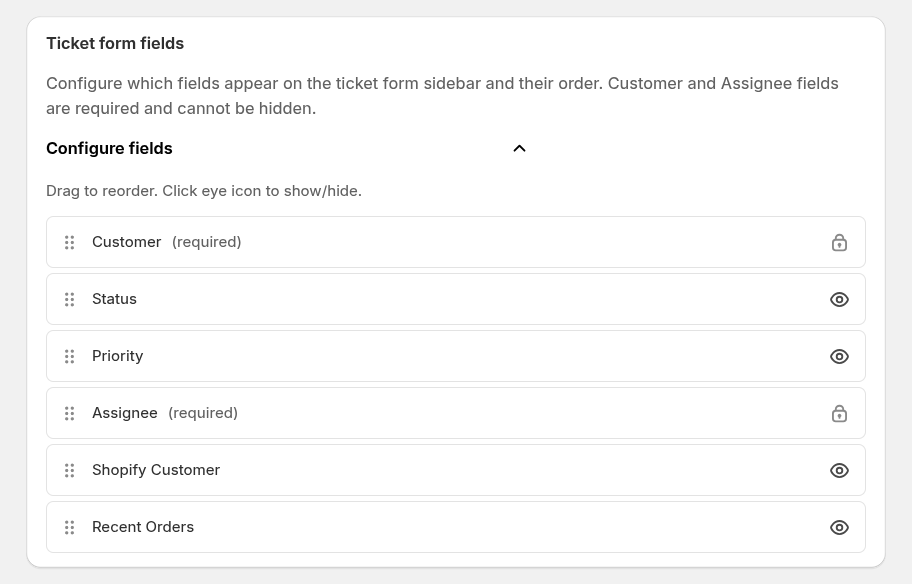
You can:
- Select which fields should appear in the ticket form
- Drag and reorder fields to match your workflow
Helpdesk access method
Your helpdesk can be accessed in two different ways depending on how your team prefers to work.
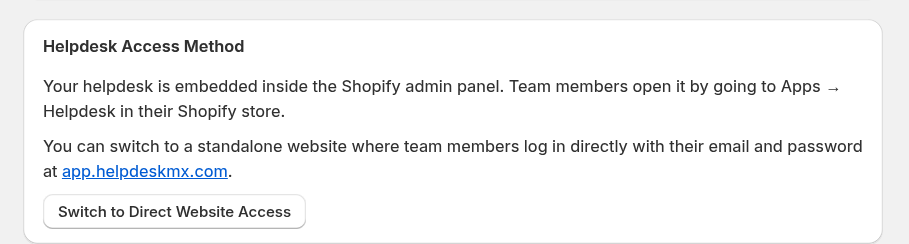
By default, the helpdesk is embedded directly inside the Shopify admin panel. Team members can open it by navigating to: Apps → Helpdesk in their Shopify store.
Alternatively, you can switch to a standalone helpdesk interface, where agents log in directly using their email and password at: app.helpdeskmx.com
This option can be useful if your team wants a dedicated workspace outside the Shopify admin panel.