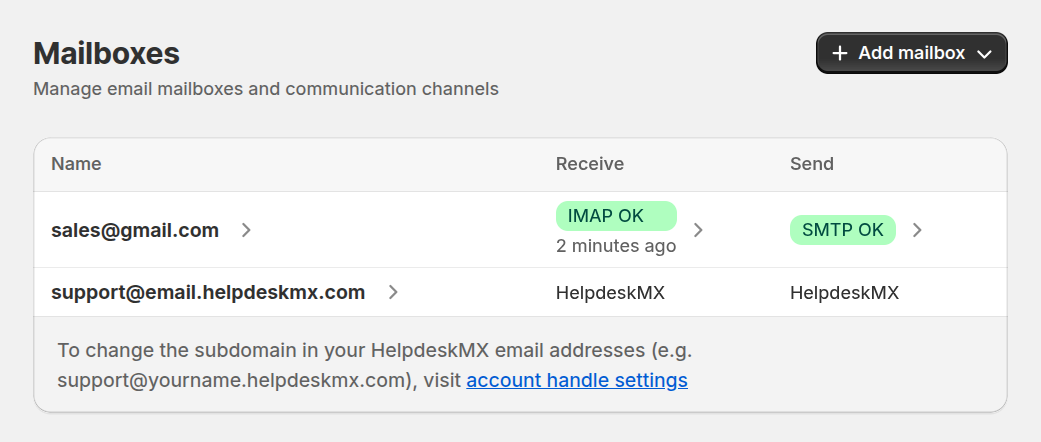
Mailboxes
Configure and connect mailboxes to automatically convert incoming emails into Helpdesk tickets. Each mailbox represents a communication channel between your customers and your support team. The system supports three connection types - from the built-in Helpdesk MX mailbox to Gmail and custom IMAP/SMTP configurations — allowing you to choose the setup that best fits your business needs.
Mailbox provided by Helpdesk MX
Use the built-in Helpdesk MX mailbox to start receiving and sending support emails instantly - no external configuration required. This is the easiest way to get your Helpdesk up and running.
- Email address: specify the email address part before @.
External email address
Connect any other email provider using IMAP/POP3 for incoming messages and SMTP for outgoing emails. This option offers maximum flexibility for connecting emails.
Email address
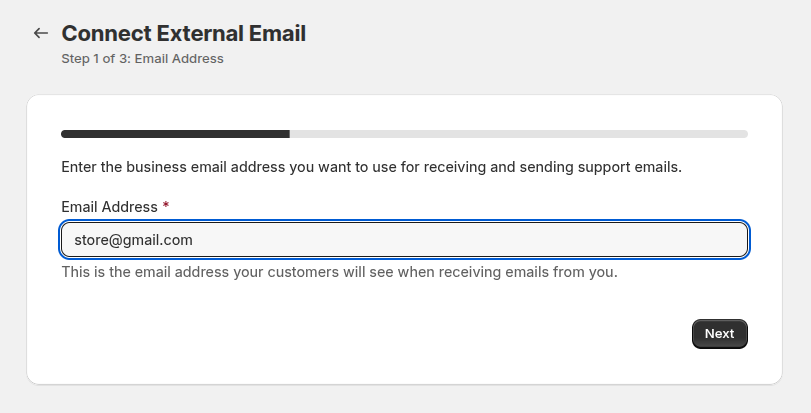
- Email Address: the business email address you want to use for receiving and sending support emails.
Receive Method
Configure how Helpdesk fetches emails from your mail server:
Email forwarding - forward emails from your email provider to HelpdeskMX.
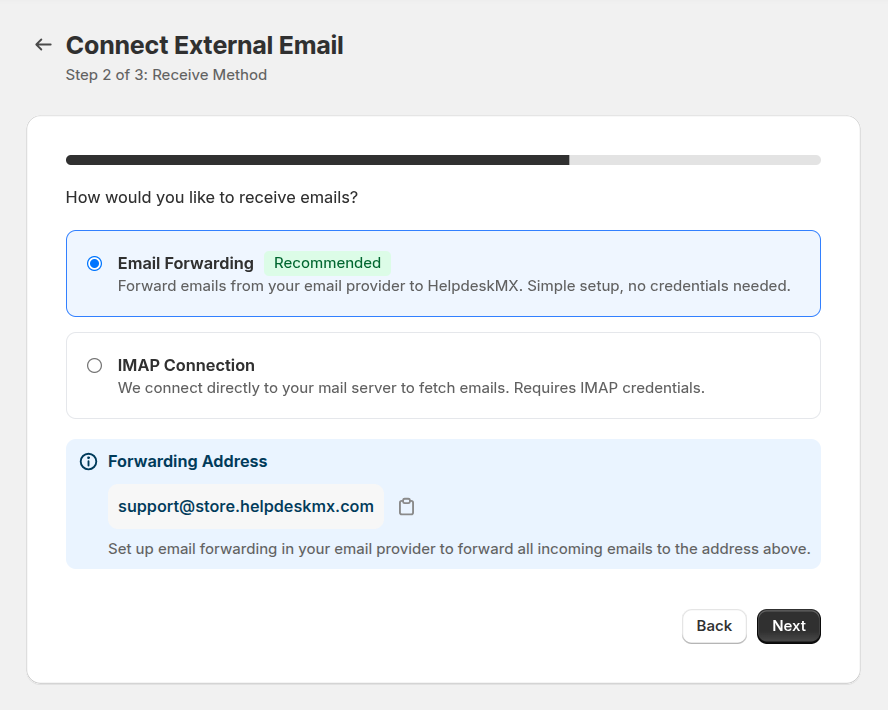
IMAP connection - we connect directly to your mail server.
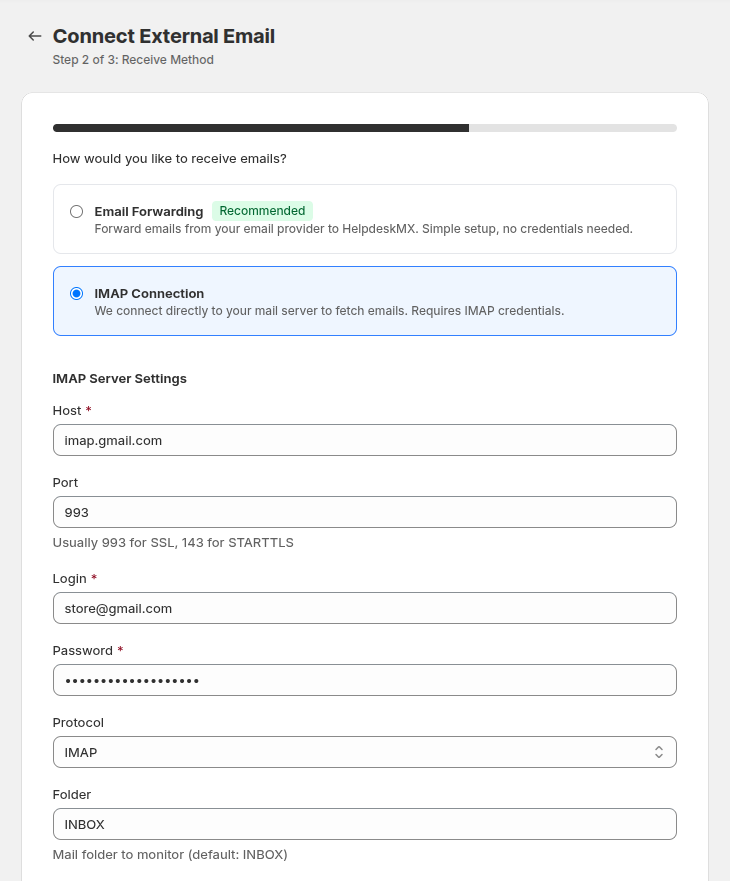
- Host: specify the incoming mail server hostname (e.g., imap.yourdomain.com).
- Port: define the mail server port (commonly 993 for IMAP with SSL or 143 for IMAP without encryption).
- Login: enter the email account’s login or username.
- Password: provide the password for mail server authentication.
- Protocol: choose between IMAP or POP3 depending on your mail server configuration.
- Folder: specify the mail folder to monitor (default: INBOX).
Send Method
Configure outgoing email delivery via:
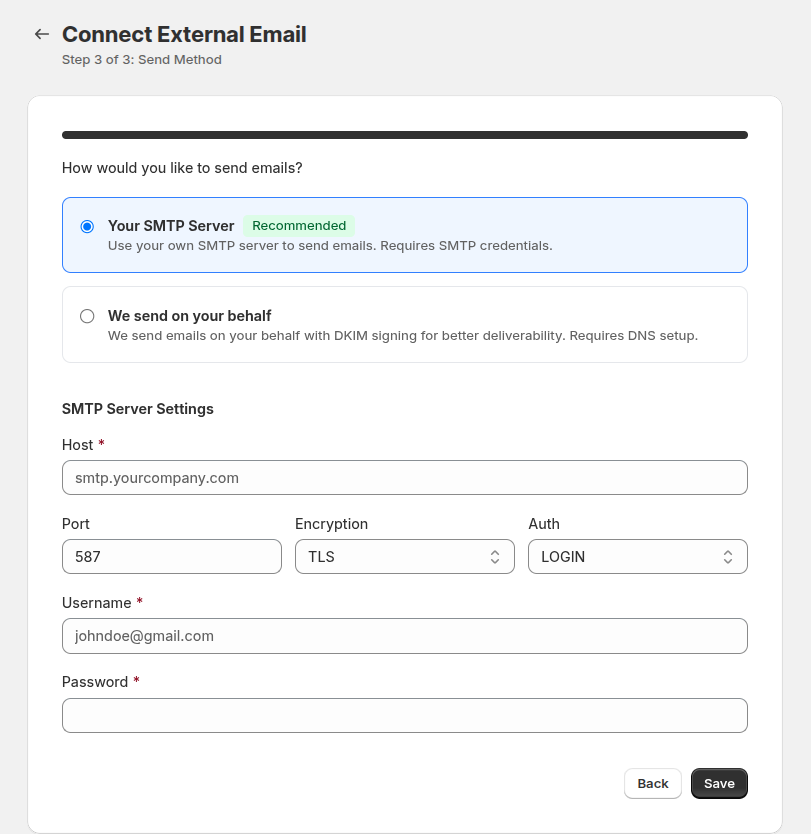
Your SMTP server - use your own SMTP server to send emails.
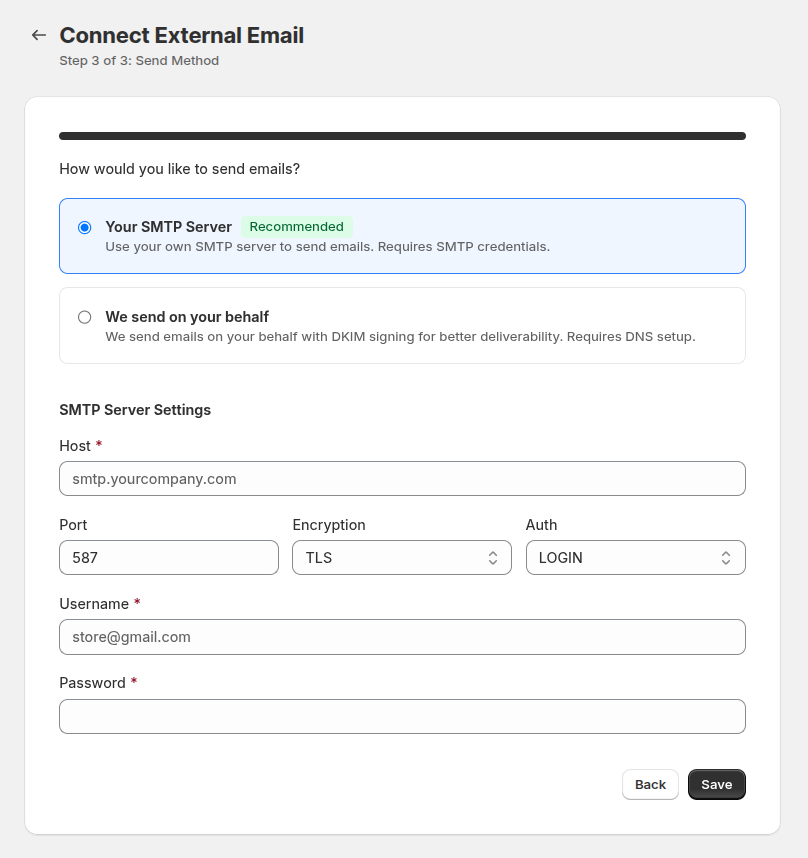
- Host: specify the SMTP server hostname.
- Port: define the port number (commonly 587 for TLS, 465 for SSL, or 25 for unencrypted connections).
- Username: enter the username used for SMTP authentication.
- Password: provide the password for SMTP authentication.
- Encryption: choose the encryption type (TLS or SSL) for secure delivery.
- Auth: select the authentication method (commonly LOGIN).
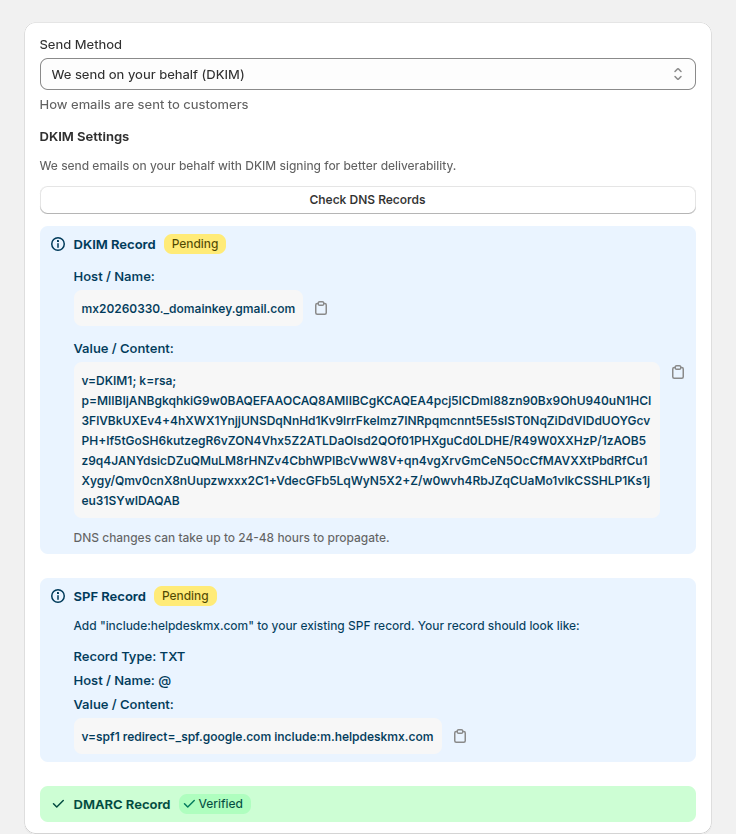
We send on your behalf - we send emails on your behalf with DKIM signing for better deliverability.
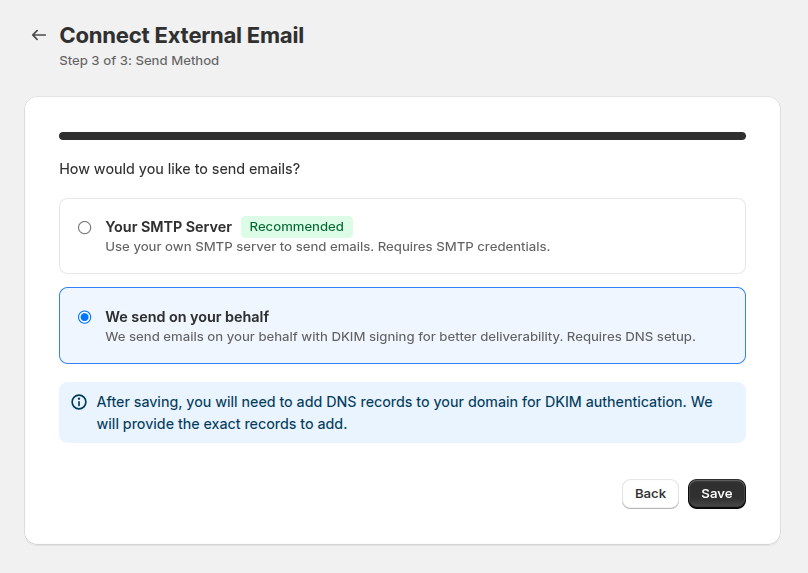
After saving, you need to add DNS records to your domain for DKIM authentication.